Lock screen vision board on iPhone: the setup that makes you look
How to put a vision board on your iPhone lock screen, size it so nothing is cut off, add a widget, and keep it from turning into background within a week.
The lock screen is the most-viewed surface you own. Estimates of how often people check their phones range from about 60 to more than 140 times a day, and every one of those checks starts on the lock screen. A vision board there gets more attention in a week than a framed print gets in a year. The catch is that the lock screen has a clock, a notification stack and two buttons in the way, so a board pasted in unchanged looks cropped and gets ignored. Here is the setup that works.
Size the image for your iPhone, not for Instagram
A square or 4:5 image will be zoomed until it fills the screen and you will lose the edges. Export at the screen’s own ratio, roughly 9:19.5. The common sizes are 1179x2556 pixels for the 6.1 inch models and 1290x2796 for the 6.7 inch models; older and smaller models are close enough that the same file works. The iPhone app exports at the size of the device it is running on; the free maker exports a portrait grid you can crop in Photos.
Keep the top fifth and the bottom eighth empty
The clock and date occupy roughly the top 20 percent of the lock screen, and the flashlight and camera buttons plus the swipe bar take the bottom 12 percent. Anything you place there will be covered or unreadable. Put your board in the middle 70 percent, and put the tile you most need to see in the middle row, at eye level when you glance at the phone.
Set it as the lock screen only, not both
Open Photos, pick the image, tap Share, then Use as Wallpaper. Do not pinch to zoom; the export is already sized. Tap Add, then Set as Wallpaper Pair or Customize Home Screen. Choose a plain or blurred home screen instead of the board. A board behind your app icons is noise; a board behind the clock is a message.
Turn off depth effect and heavy notifications
With iOS 16 and later, the clock can sit behind the wallpaper’s subject if depth effect is on. Long-press the lock screen, tap Customize, tap the three-dot menu and switch Depth Effect off, otherwise the clock may hide a tile. Then consider which notifications you actually want stacked on top of the board. Summaries delivered at set times keep the board visible for most of the day.
Add a widget that changes what you see
A static image becomes invisible in about two weeks. The fix is rotation. On the home screen, long-press, tap Add Widget, and add a widget that cycles through images. The iPhone app rotates one tile per refresh and shows the tile’s next action underneath; Apple’s Photos widget can also shuffle an album if you save each tile as a photo. The point is that the goal you see next to your calendar at 9am is a different goal at 3pm.
Pair every tile with a next action, or it is wallpaper
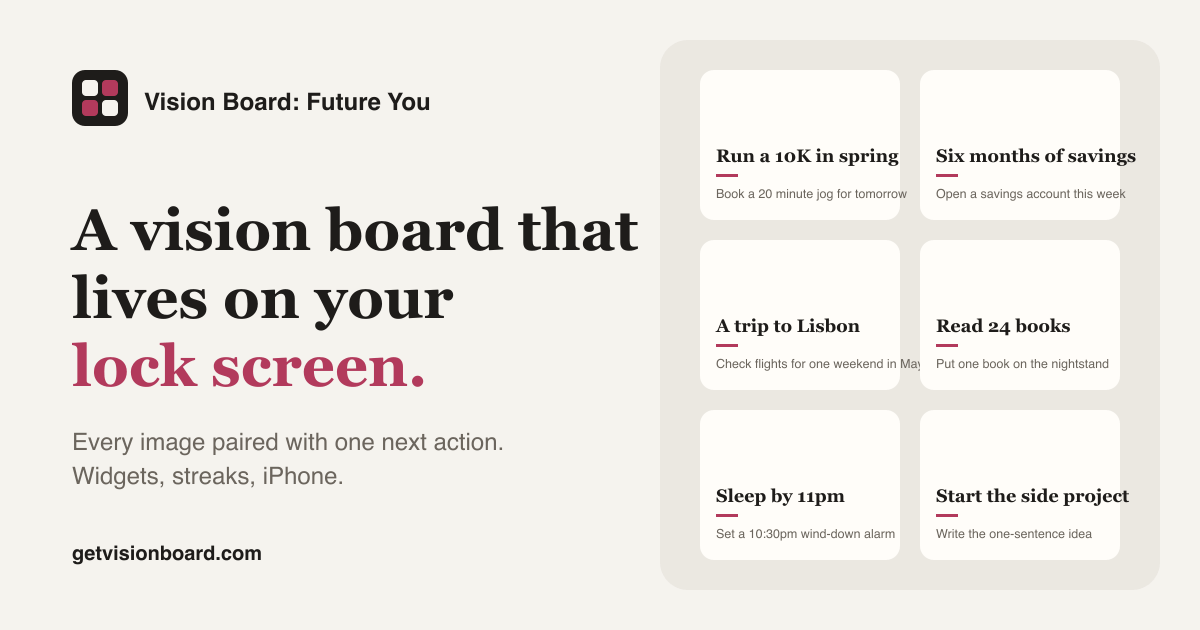
A picture of a finish line does not make you run. Research by psychologist Gabriele Oettingen found that people who only imagined a positive outcome put in less effort than people who also faced what stood in the way and made a plan. The practical version for a lock screen: every tile carries one action you can do this week, in one line, under the image. When you glance at the phone at 7am, the sentence you read is book the 20 minute jog, not a photo of someone else running.
Build a board in that format with the free maker; the fitness template opens with twelve tiles already written as goal plus next action.
Refresh the board on a schedule
Change something every two or three weeks: the style preset, the order of tiles, or the top row. Each change resets the habituation clock. Once a month, replace tiles whose goals moved and rewrite the next actions. The board should look different in spring than it did in January; if it does not, it has stopped being a plan.
What the app adds over a plain wallpaper
You can do everything above with an image and Photos. The app removes the friction: a board exported at your device size in one tap, widgets that rotate the tiles with their next actions, a streak that notices when you stop, and a daily reminder that shows one next action instead of a picture. If the manual setup works for you, keep it. If the board keeps sliding back into the folder, the app exists for that.
Main claim: A lock screen vision board works when it is sized for the phone, kept out of the clock, refreshed every few weeks, and carries a next action on every tile.
Get the app
Put your board on your lock screen and widgets, pair every image with one next action, keep a streak. Free 7-day trial on iPhone.
Get the appOr start free in the web maker →Frequently asked questions
What size should an iPhone lock screen vision board be?
Use the native resolution of your model, for example 1179x2556 for a 6.1 inch iPhone 15 or 1290x2796 for the 6.7 inch models, and keep important text out of the top 20 percent where the clock sits and the bottom 12 percent under the flashlight and camera buttons.
Can a vision board widget change through the day?
Yes. Home-screen widgets can rotate images on a timeline; iOS refreshes them roughly every 15 to 60 minutes. The Vision Board: Future You app rotates one tile per refresh. Apple's Photos widget can also shuffle an album.
Why did I stop noticing my lock screen wallpaper?
Habituation. After a few weeks any static image becomes background. Change the tile order, the style or the top row every two to three weeks, and use a widget that rotates tiles so the goal you see keeps changing.